Creating Display P3 app icons with Icon Composer
Prior to macOS 26, Mac app icons were limited to the sRGB colour space. This meant even though Macs have supported wide gamut displays for over a decade, app icons couldn’t take full advantage of them. With the introduction of Icon Composer in 2025, that finally changed.
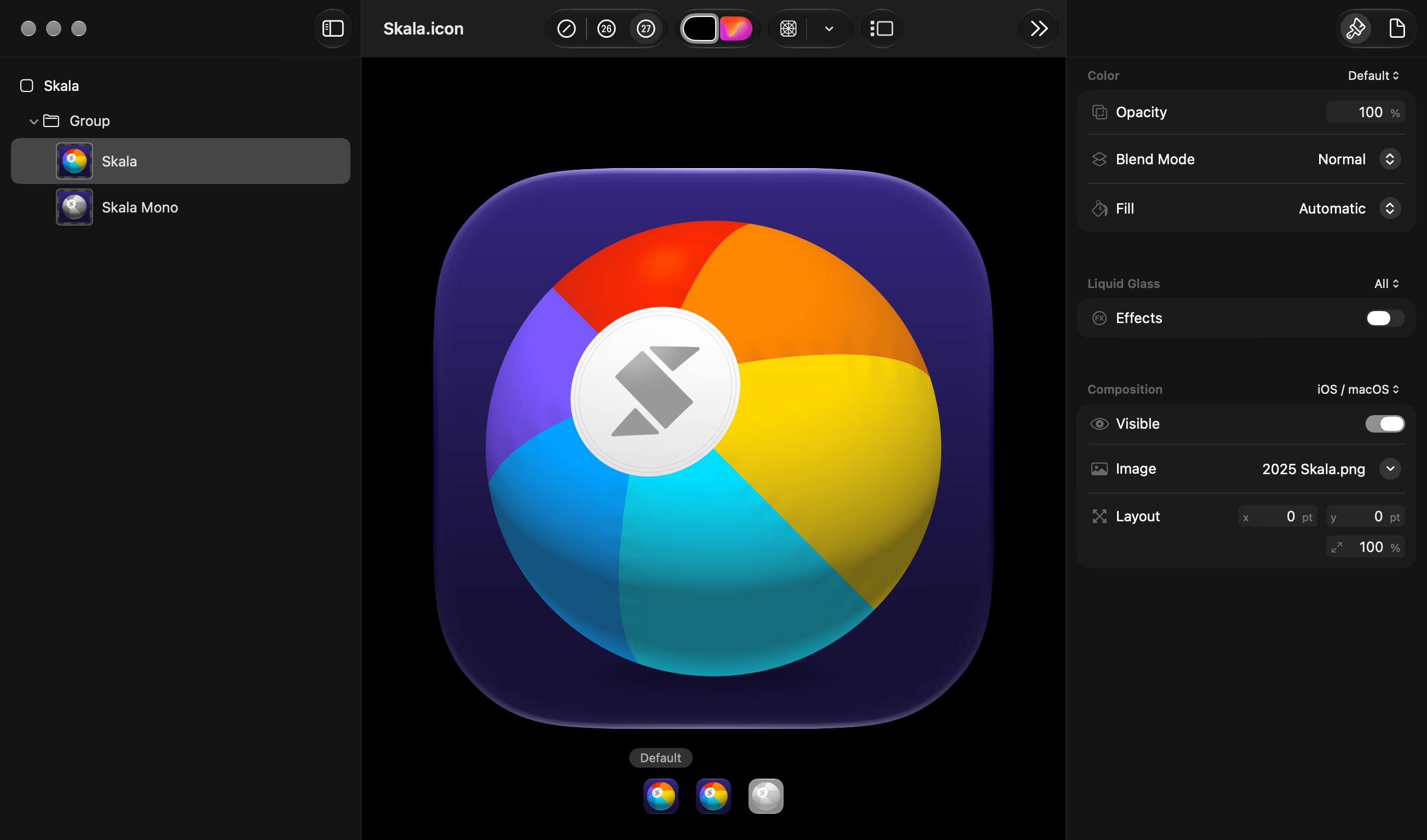
Icon Composer also introduced another radical change — app icons are now authored as a single 1024×1024 pixel document, covering all pixel densities and uses. It is no longer necessary, or possible, to supply separate artwork for each size.
This breaks with over 40 years of Mac history. The original Macintosh shipped with 32×32 pixel monochrome icons. Over the following decades, icons gained more colours, higher resolutions, alpha transparency, and additional sizes.
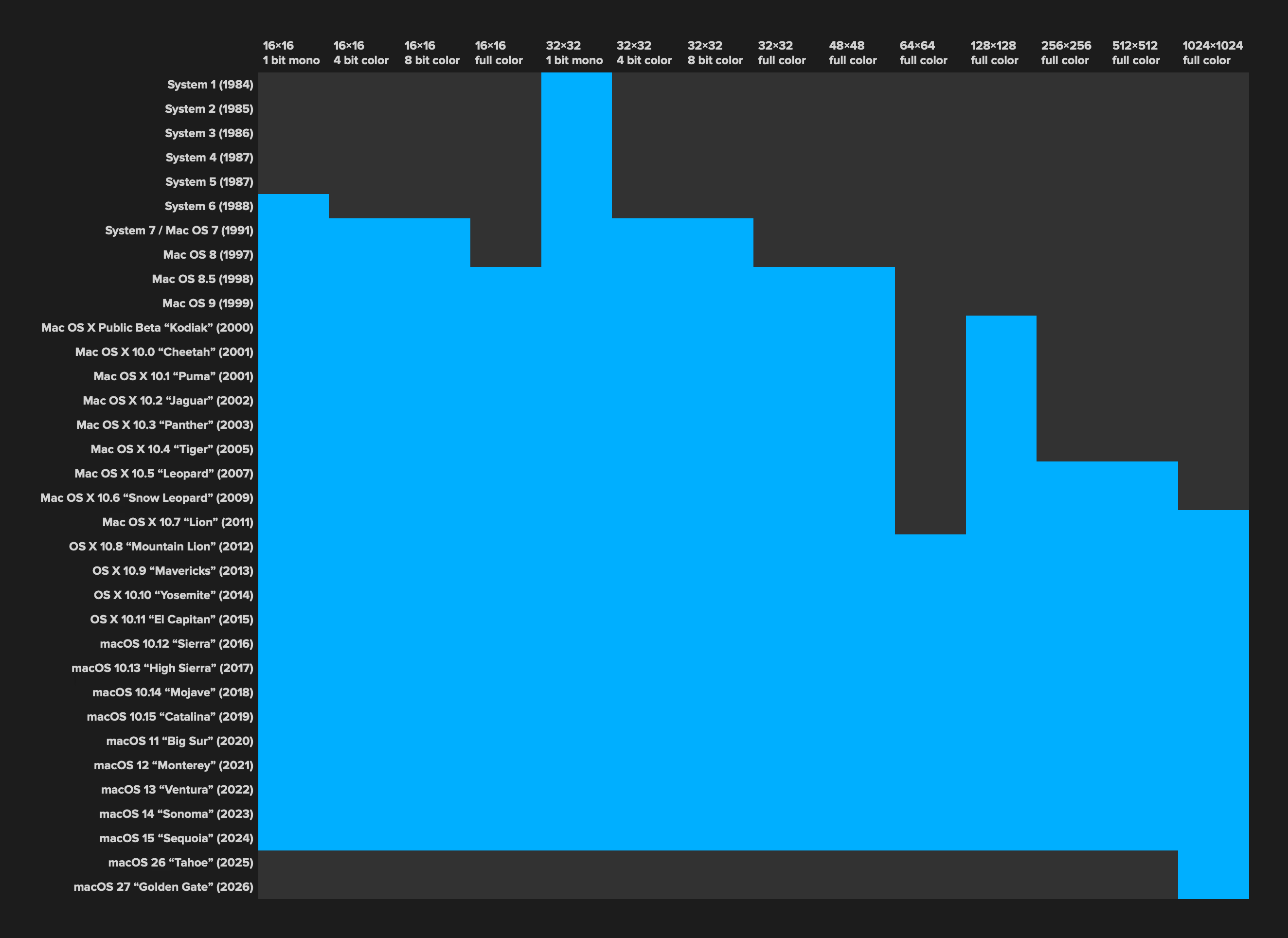
At the peak, macOS app icons supported eight different sizes, from 16×16 all the way up to 1024×1024 pixels. With Icon Composer, we’re back to a single size.
Previously, supplying different sizes meant designers could optimise each one independently. The 16×16 pixel icon could have simplified shapes, exaggerated details, and pixel-aligned edges, while the 1024×1024 pixel version could contain intricate textures and subtle lighting.
That’s no longer possible. The system now takes the 1024×1024 pixel artwork and resizes it as required. The results are blurrier at smaller sizes. There are some details that simply don’t survive being scaled down, no matter how carefully the original artwork was constructed. I don’t love that.
However, things were getting out of hand. Before Icon Composer, a complete set of iOS app icons could require 16 sizes. Add dark and tinted variants, and that’s potentially 48 images.
Icon Composer replaces all of that with one document. It’s a huge simplification, especially when you consider the new appearance options. As much as I lament the loss of pixel perfect small icons, I think this is probably the right tradeoff.
Display P3 app icons #
There’s three ways to create colour when working with Icon Composer — using bitmap images, using vector images (SVGs), or using the built in colour picker for solid colours and gradients. Apple is using Display P3 colours in lots of their icons. The Calendar icon’s bright red is an example of this.
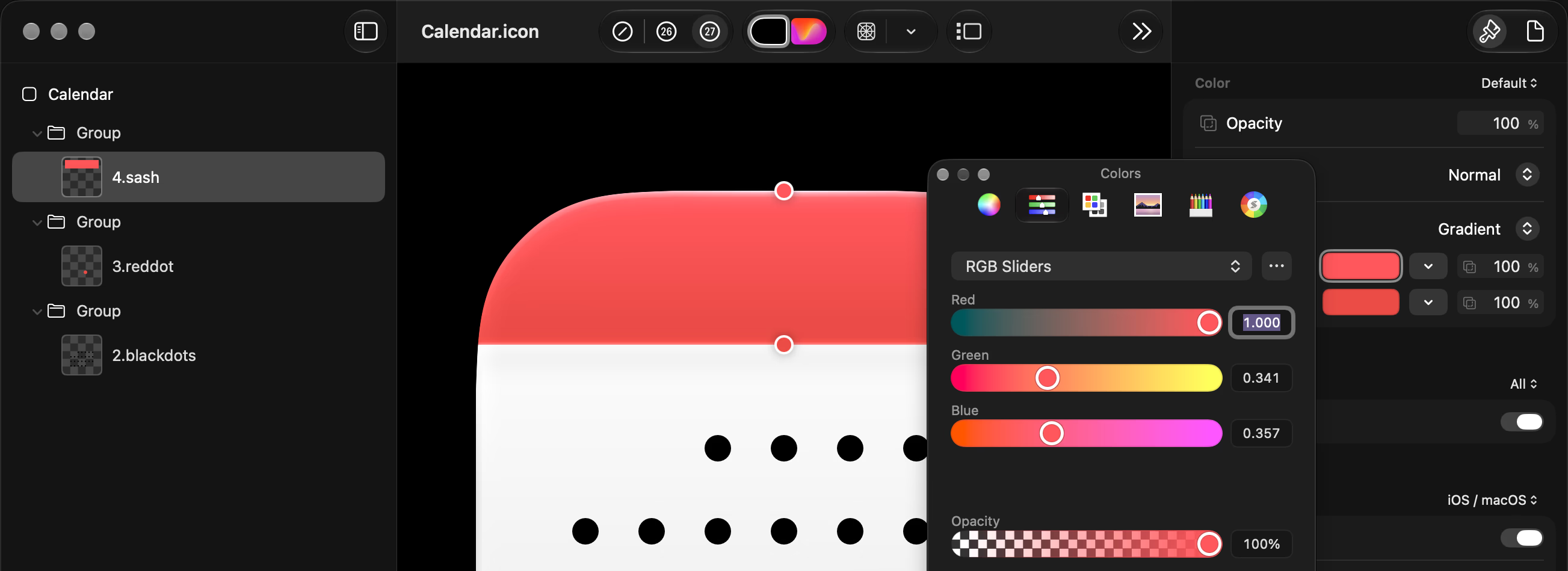
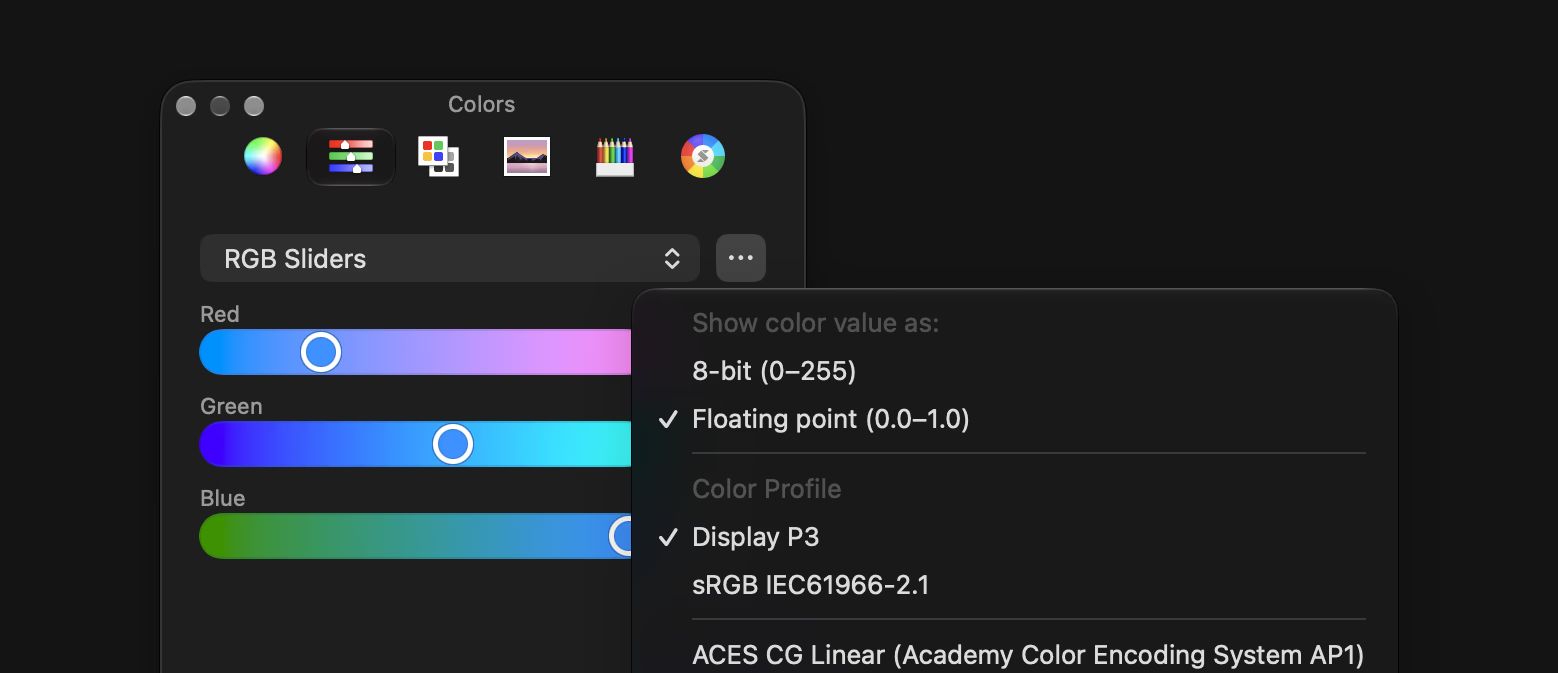
For Display P3 colours when using the picker, choose RGB sliders or HSB and a colour profile can be chosen in the overflow menu. This also lets you switch between 8-bit values with an additional HEX input field, or floating point (0 to 1) values.
To use Display P3 bitmap images, make sure they’re saved with a Display P3 ICC profile. In Photoshop, this means using a Display P3 colour profile, and exporting with Embed Color Profile turned on.
If you’re after solid fills or simple gradients, bitmap images and SVGs can be tinted by changing the fill property. Those tint colours can be Display P3.
If you’d like to use a multi-coloured Display P3 SVG, it’s a bit trickier. It’s not common for design tools to be able to export them correctly, so you may have to open the SVG in a text editor and use color(display-p3), oklch(), or oklab() functions for all the colours, instead of hex values.
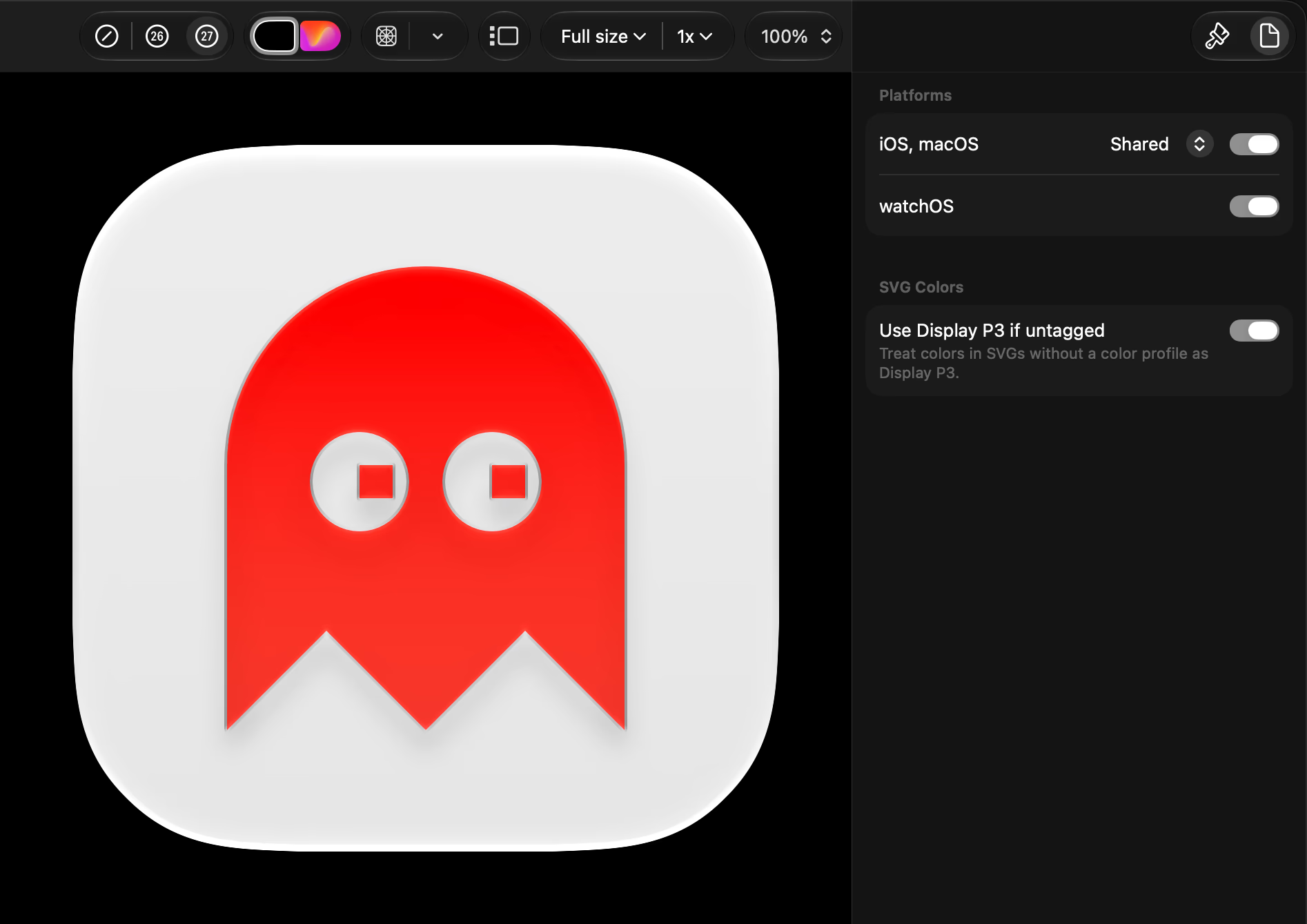
It’s also possible to treat untagged colours in SVGs as Display P3 for the entire document, with the Use Display P3 if untagged switch. That is for the entire document though, so it won’t help if you need a mixture of sRGB and Display P3 SVGs.
Icon Composer document format #
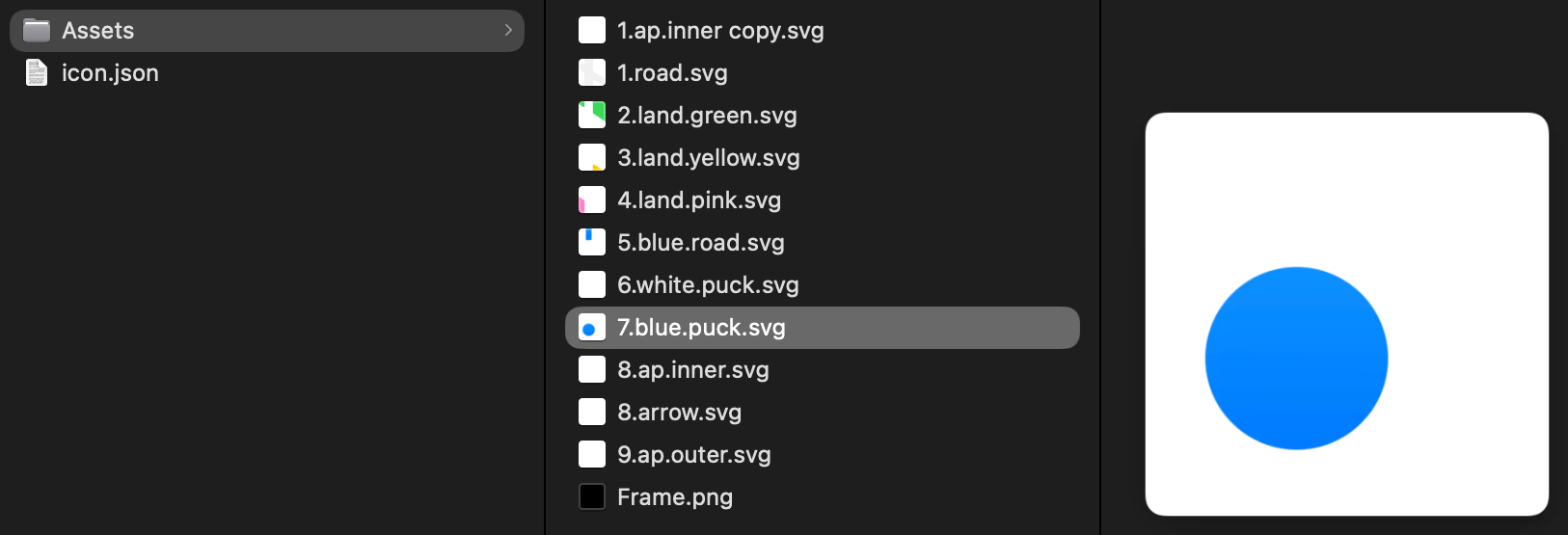
An Icon Composer document is a package containing JSON and image assets. You can inspect it by right clicking the document in Finder and choosing Show Package Contents. This makes the format relatively easy to understand, and useful for hand editing and automation.
Here’s a look inside the Maps package.
{
  "features" : [
    "refractivity",
    "specular-location"
  ],
  "fill" : {
    "automatic-gradient" : "display-p3:0.94900,0.94900,0.94900,1.00000"
  },
  "groups" : [
    {
      "blend-mode" : "normal",
      "hidden" : false,
      "layers" : [
        {
          "glass" : false,
          "image-name" : "8.arrow.svg",
          "name" : "8.arrow",
          "opacity-specializations" : [
…
Document icons #
Unfortunately, Icon Composer doesn’t currently support macOS document icons. Also, system generated document icons that use Apple’s base document icon, with a background and center image, are sRGB only for now. Hopefully macOS 28 improves the situation.
Published 4 November 2026.